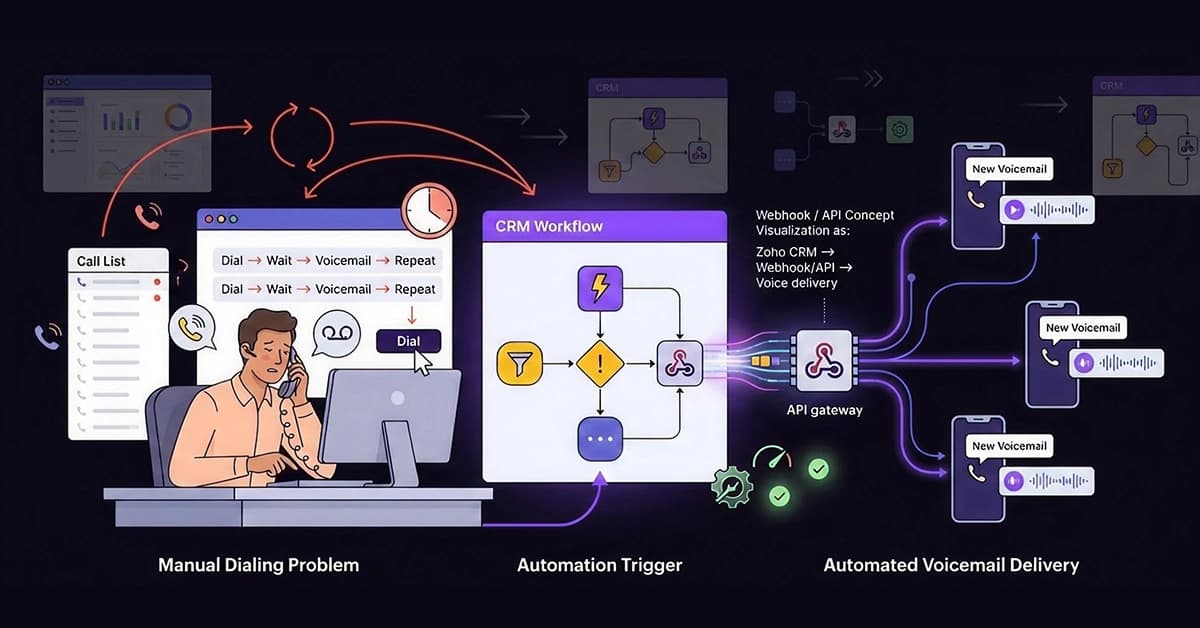
Manual dialing is the silent killer of high-volume sales teams. If your representatives are physically waiting for the “beep” to leave a message, you aren’t just wasting time you are burning budget every single hour.
The modern sales landscape demands a shift from “Manual Activity” to “Trigger-Based Logic.” Instead of relying on human effort for repetitive admin tasks, let your CRM handle the heavy lifting.
Zoho CRM Voicemail Automation allows you to “hack” Zoho’s backend logic (Workflow Rules) to trigger an external API like VoiceDrop.
The result? You deliver a pre-recorded, perfect pitch to a prospect’s voicemail server instantly, without your agents ever lifting a finger.
By “hacking” Zoho Webhooks directly, you can bypass third-party connectors like Zapier, saving both subscription costs and reducing latency.
That is the developer route. If nobody on the team wants to configure a webhook, the VoiceDrop Zapier app reaches the same endpoint with no code, and VoiceDrop in Make does the same job on a visual canvas.
Why Automate? The Business Case for Sales Managers
Automation is not just about convenience; it is a fundamental strategy for scaling revenue. Here is why sales managers are prioritizing webhook integrations this year.
Eliminating “Dialer Fatigue”
Repetitive tasks, such as dialing numbers and leaving the same 30-second message fifty times a day, drastically lower morale. Eventually, this repetition leads to “dialer fatigue,” where the sales rep sounds bored or robotic during live conversations.
Automation removes this burden. As a result, it keeps energy levels high for the calls that actually connect, ensuring your team performs at its peak.
Speed to Lead (Instant Response)
Consider this scenario: A lead fills out a web form on your site. Within one minute, they receive a voicemail on their mobile device introducing the dedicated representative. This speed is virtually impossible to achieve manually.
Research on the importance of speed to lead indicates that responding within the first hour increases your chances of qualifying a lead by a factor of 7. Automation ensures you hit that window every single time.
Standardized Pitch Quality
Humans get tired, but software does not. When a human leaves their 50th voicemail of the day, their voice often lacks the punch and enthusiasm of their first. Conversely, automation ensures the 100th lead hears the same perfect pitch, tone, and enthusiasm as the 1st lead.
Cost Efficiency
When you compare the hourly cost of a sales representative against the low cost of automated voicemail credits, the ROI is immediate. You are buying back hours of expensive labor for pennies. For a detailed breakdown of costs, you can view our flexible pricing plans to see how affordable scaling can be.
Understanding the Architecture: How Webhooks Work
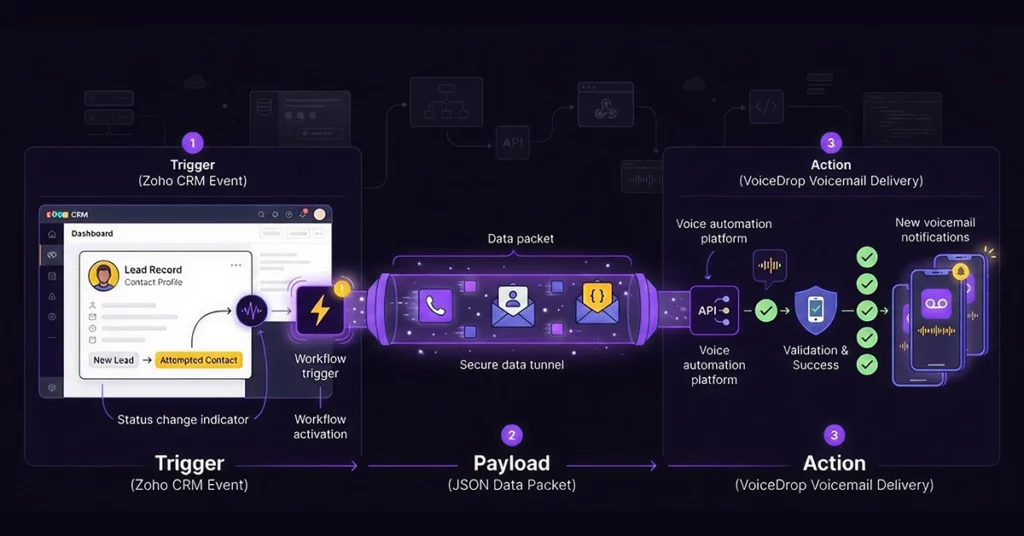
To implement this without Zapier, you must understand the data flow. Think of a webhook as a digital “tap on the shoulder.”
The Trigger (Zoho Side)
This is the “If This” part of the equation. It is the event within Zoho CRM that initiates the process. For example, a trigger could be when a Lead Status changes to ‘Attempted’ or when a new lead is created via a specific web form.
The Payload (The Data Packet)
Once triggered, Zoho bundles the necessary information, specifically the Lead’s Phone Number and Name, into a JSON packet. This packet is the “Payload” that will be sent out to the world.
The Action (VoiceDrop Side)
This is the “Then That” part of the process. VoiceDrop receives the packet via its API, validates the phone number to ensure it is a mobile line, and instantly drops the audio file.
Prerequisites Before You Build
Before attempting to configure the webhook, ensure you have the following components ready.
Zoho Edition Requirements
Webhooks are an advanced feature. Therefore, you must have the Enterprise, Professional, or Zoho One edition of Zoho CRM. Unfortunately, the Standard edition often limits or excludes Webhook capabilities.
VoiceDrop API Credentials
To authenticate the connection, you need your unique API Key and the specific Campaign ID (the ID of the message you want to send). You can find these directly inside your VoiceDrop dashboard.
Clean Data
Automation relies on accuracy. Ensure phone numbers in Zoho are formatted correctly. A clean E.164 format (e.g., +15550199) is preferred to ensure the carrier correctly recognizes the destination.
Ensure phone numbers in Zoho are formatted correctly (clean E.164 format is preferred). Additionally, sending SMS or voicemails to landlines is a waste of budget. Before you automate, verify your list is 100% mobile numbers using the Bulk Phone Validator from 1Lookup.
Step-by-Step Implementation Guide
Follow this guide to set up your integration directly, bypassing any middleware.
Step 1: Configuration in VoiceDrop
First, log in to your VoiceDrop account. You need to create a new campaign and upload your pre-recorded audio file (.mp3 or .wav). Once the campaign is active, navigate to the API settings to copy your credentials. If you need help finding these settings, check our guide on VoiceDrop Integrations for a visual walkthrough.
Step 2: Setting up the Zoho Workflow Rule
Next, switch over to your Zoho CRM. Navigate to Setup (the gear icon), then find Automation and click Workflow Rules. Click the blue “Create Rule” button. When prompted, select the Module you wish to target, which is usually Leads or Contacts.
Step 3: Defining the Logic (The “When”)
Now you must define when the voicemail should be sent.
- Rule Trigger: Select “On a record action.”
- Criteria: Define the specific condition, such as “Lead Status is [Left Voicemail]” OR “Field Update [New Lead].”
Your logic must be precise so you do not message the wrong people. For a deeper dive on logic, refer to the official Zoho Workflow Rules documentation.
Step 4: Configuring the Webhook (The Technical Part)
In the “Instant Actions” section of your workflow, select Webhook.
- Method: You must select POST.
- URL: Paste the VoiceDrop API endpoint URL provided in your dashboard.
- Authorization: Depending on the API version, you will pass the API Key either in the Header or the Body.
Step 5: Mapping the Parameters (Body)
This is where you tell VoiceDrop which phone number to call.
- Type: Select Form-Data or Raw JSON.
- Key-Value Pairs:
- source_number = Map this to the Lead’s Mobile or Phone field using the “#” selector.
- campaign_id = Paste your specific [Campaign ID] here as a static value.
Step 6: Testing and Validation
Finally, do not go live without testing. Create a dummy lead in Zoho using your own personal mobile number. Change the status to trigger the rule. If configured correctly, you should receive a voicemail on your phone within moments.
Advanced Strategies for Power Users
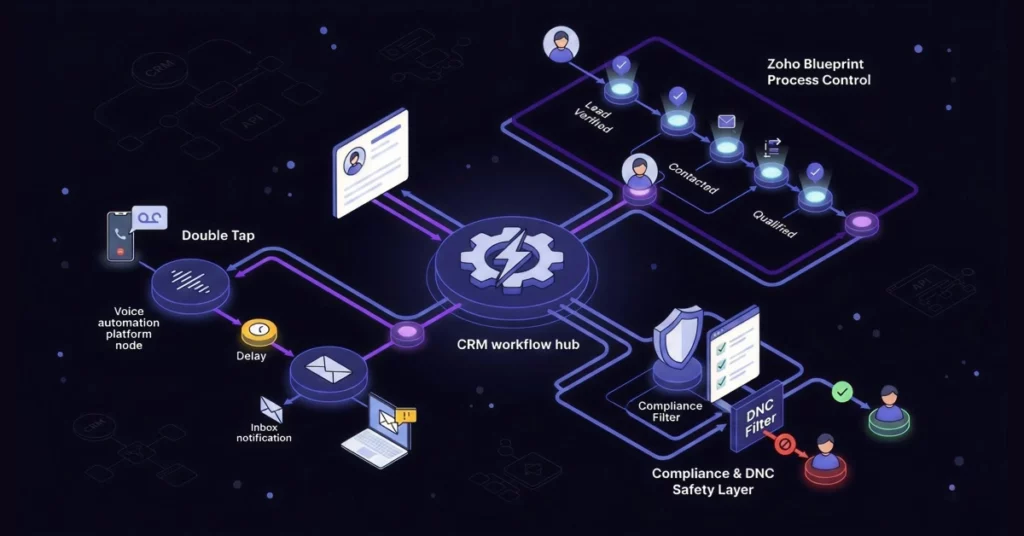
Once you have the basic webhook running, you can implement more sophisticated workflows.
The “Double Tap” Sequence
A highly effective sales tactic is the “Double Tap.” In the same Zoho Workflow, add a second action: Send Email. Configure it so that 1 minute after the voicemail webhook fires, an email is sent with the subject line, “Just tried your phone.” This multi-channel approach significantly increases response rates.
Using Zoho “Blueprints”
Instead of simple status changes, you can trigger webhooks within Zoho Blueprints. This ensures voicemails are sent only when a lead effectively transitions through a verified stage, enforcing strict process compliance among your sales team.
Handling “Do Not Call” (DNC)
To stay compliant, you should always add a safety check. In your Workflow Criteria (Step 3), add an automated condition: AND “Email Opt Out” is False. You can also create a custom “DNC” checkbox field and ensure it is unchecked before the webhook fires.
Troubleshooting Common Integration Errors
If your test fails, check these common issues immediately.
Error 400 (Bad Request)
This error usually means the data sent was incomplete or malformed. Check that the phone number field in Zoho was not empty and didn’t contain invalid characters, such as excessive parentheses or extension numbers.
Webhook Not Firing
If the lead status changed but nothing happened, check the workflow settings. Ensure the “Repeat this workflow” box is checked if you intend to run this rule multiple times for the same record.
Voicemail Not Delivered
It is important to distinguish between “Sent to API” and “Delivered.” If Zoho says “Success” but the phone didn’t ring, check your VoiceDrop reports. The call may have failed at the carrier level (e.g., the mailbox was full, or the line was a landline).
It is vital to distinguish between “Sent to API” (Success) and “Delivered.” If Zoho reports success but the phone didn’t ring, check your VoiceDrop reports.
The most common cause of failure is attempting to drop a voicemail on a landline. Since landlines cannot receive ringless drops, this results in a “Failed at Carrier” error.
To eliminate these errors permanently, we recommend integrating 1Lookup’s HLR API to detect line types instantly before your workflow even triggers the call. 1Lookup is built by the same team as VoiceDrop.
Best Practices for Scripting and Timing
Technical setup is only half the battle; strategy is the rest.
Time Zone Intelligence
You must avoid waking prospects up. Use Zoho’s “Execution Time” features or create logic based on the State/Country field to ensure voicemails do not land at 2 AM.
The “Vague” Script Technique
Since this is automated, you cannot say, “Hey Bob.” Instead, keep the script intentionally generic but personal. For instance: “Hey, it’s [Your Name], I just saw your inquiry come through and wanted to reach out personally. Call me back when you get this.”
Conclusion
Automation buys you time, and in sales, time is your most valuable asset. Webhooks act as the bridge that connects your CRM data to real-world actions. By hacking Zoho Webhooks to send Ringless Voicemails, you eliminate the friction of manual dialing and ensure every lead gets a personal touch.
Once you master this workflow, you can expand to automate SMS, direct mail, and other outreach channels using the same webhook logic. Technology is the bridge; your strategy is the driver.
Don’t let another lead go cold while your team is stuck manually dialing numbers. Get your API Key from VoiceDrop and build your first automated workflow today.
Start your free trial now and experience the power of automation.
FAQ’s
Can I use this for existing leads?
Yes, absolutely. You can trigger the workflow for existing leads by performing a “Mass Update” on a specific field that triggers the rule (e.g., updating a custom field called “Send VM” to “Yes”).
Will this work with Zoho CRM Free Edition?
No, unfortunately not. Webhooks are a premium feature. You will need the Standard edition or higher to access the workflow automation required for this integration.
Is there a delay between the trigger and the voicemail?
The process is near-instant. The API request is usually processed within seconds, meaning the voicemail often lands on the prospect’s phone while they are still browsing your website.
How do I track success?
You should use a two-pronged approach. Use the VoiceDrop dashboard to monitor delivery rates and successful drops. Simultaneously, use Zoho Reports to track “Callback Rates” regarding leads that received the voicemail.