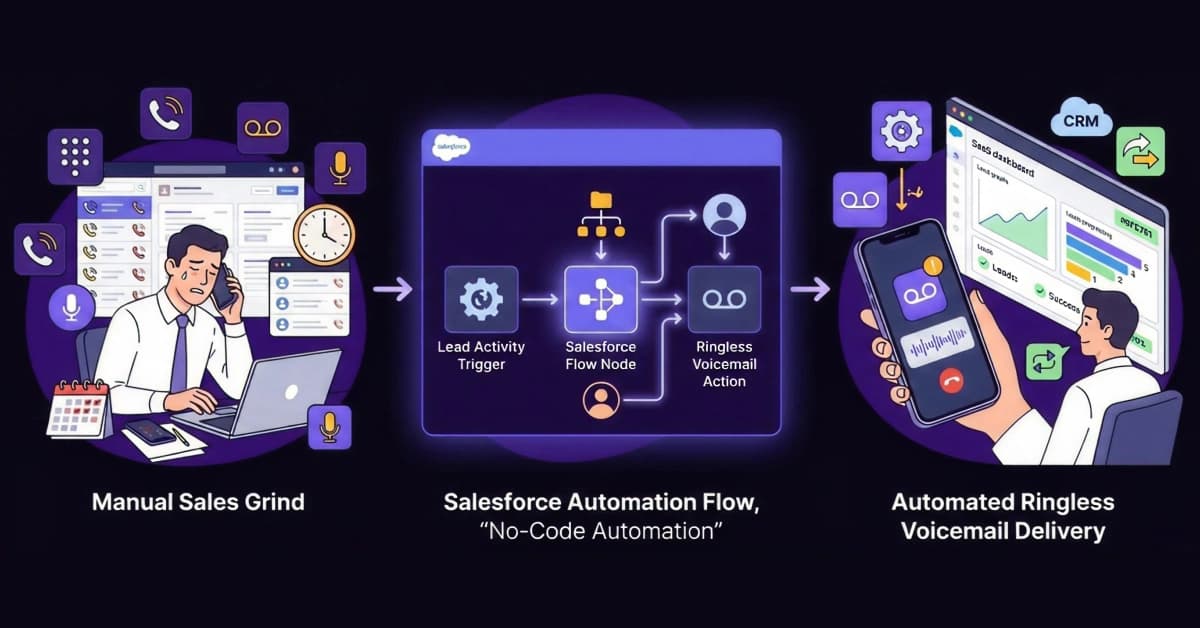
According to Salesforce’s own State of Sales report, reps spend only 28% of their week actually selling. Administrative tasks and the manual grind of outreach consume the rest. They waste countless hours clicking “Dial,” listening to ringtones, and repeating the same generic voicemail script into the void. This doesn’t just kill morale; it kills your revenue.
While you have likely automated your email sequences within Salesforce, voice outreach remains a manual bottleneck. However, an efficiency gap exists here.
By leveraging Salesforce “Flows,” you can bridge this gap. You can trigger ringless voicemails (RVMs) based on lead behavior, completely automating the chase so your team can focus on closing.
Flows vs. Apex: Why You Don’t Need a Developer
For years, deep Salesforce automation was gated behind “Apex,” Salesforce’s proprietary coding language. If you wanted to integrate an external telephony API, you needed a developer, a sandbox environment, and weeks of testing code.
Salesforce Flows changes the game. Flows use a visual, drag-and-drop interface (similar to a flowchart) that allows Administrators to build logic, not just Developers. If you can map out a sales process on a whiteboard, you can build it in Flow Builder. It is faster to deploy, easier to debug, and requires zero lines of code.
For a deeper understanding of the tool’s capabilities, review the official Salesforce Flow Builder Guide.
Prerequisites: What You Need Before Building
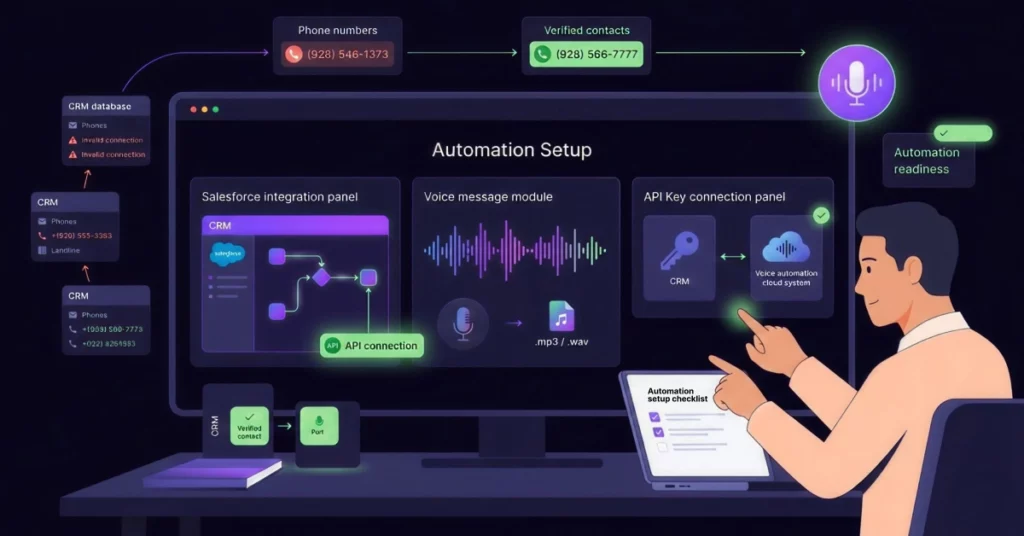
Before you start building your automation, you must ensure you have the necessary components ready. This prevents you from getting stuck halfway through the setup process.
- A Salesforce Account: You typically need an Enterprise or Unlimited edition to access the necessary API features.
- A VoiceDrop Account: Required to generate the API Key that connects the two platforms.
- A Recorded Audio File: Have your message recorded in .mp3 or .wav format.
Furthermore, having the API Key ready is crucial for the “Action” step in the Flow. You will need to copy this credential directly from your dashboard. To check if your account is ready for connection, visit VoiceDrop Integrations.
Pro Tip: Automation fails if your phone numbers are invalid or landlines. Don’t waste your budget on dead ends. 👉 Validate Your Salesforce Data with 1Lookup before running your first flow. 1Lookup is built by the same team as VoiceDrop.
Step-by-Step: Creating the “Ringless Voicemail” Flow
This is the core technical tutorial. We will break it down into manageable steps so you can follow along easily.
Step 1: Choosing the Trigger (Record-Triggered Flow)
First, navigate to the Flow Builder in your Salesforce Setup menu. You will need to select a “Record-Triggered Flow.” This specific type of flow launches automatically in the background.
Next, guide the system to select the specific Object you want to monitor, such as “Lead” or “Opportunity.” Subsequently, set the trigger configuration to “A record is created or updated.” This ensures that the system watches for changes in real time.
Step 2: Defining the Entry Criteria
Once the trigger is set, you generally don’t want to call everyone back. You need a Decision Element to filter your targets.
Drag a “Decision” element onto the canvas. Label it “Check Lead Status.”
- Criteria 1 (Target): Set conditions such as Status Equals New OR Status Equals Unresponsive.
- Criteria 2 (Safety): Always add a safety check. For example, ensure Phone is null or false.
Crucially, be precise with your conditions. If you skip this, you risk spamming every contact in your database whenever a minor field is updated.
Step 3: Adding the “Outbound Message” or Apex Action
This is where the magic happens. You will use an Action element to communicate with VoiceDrop.
- Click the (+) symbol to add an element.
- Select Action (or “External Service” depending on your integration setup).
- Search for your installed VoiceDrop package action or choose “HTTP Callout” if connecting via API directly.
- Input Variables: Map the Lead’s Phone Number field to the destination variable and paste your VoiceDrop Campaign ID or API Key.
This action tells Salesforce: “When the criteria in Step 2 are met, fire this specific audio message to this specific phone number.”
For more strategies on keeping your CRM clean while automating, read about Salesforce Automation Best Practices.
Scripting Your Automation: What to Say?
Automation is only as good as the message you deliver. Therefore, we have tailored 2-3 specific scripts for common Salesforce scenarios.
The “New Lead” Instant Response
Use this script for fresh inbound leads who have just filled out a form. Speed is essential here.
- Example: “Hey [Name], I just saw your inquiry come through on our site. I’m assigning a specialist to your account now, but I wanted to say hi personally first. I’ll shoot you an email shortly.”
The “Stalled Opportunity” Nudge
Use this template when an Opportunity stage hasn’t moved in the past 14 days. It serves as a gentle reminder.
- Example: “Hi [Name], I was reviewing our pipeline and noticed we haven’t connected in a few weeks. Did you still need help with [Project]? Let me know if you want to keep this open.”
Testing and Troubleshooting Your Flow
Don’t “Set It and Forget It” just yet.
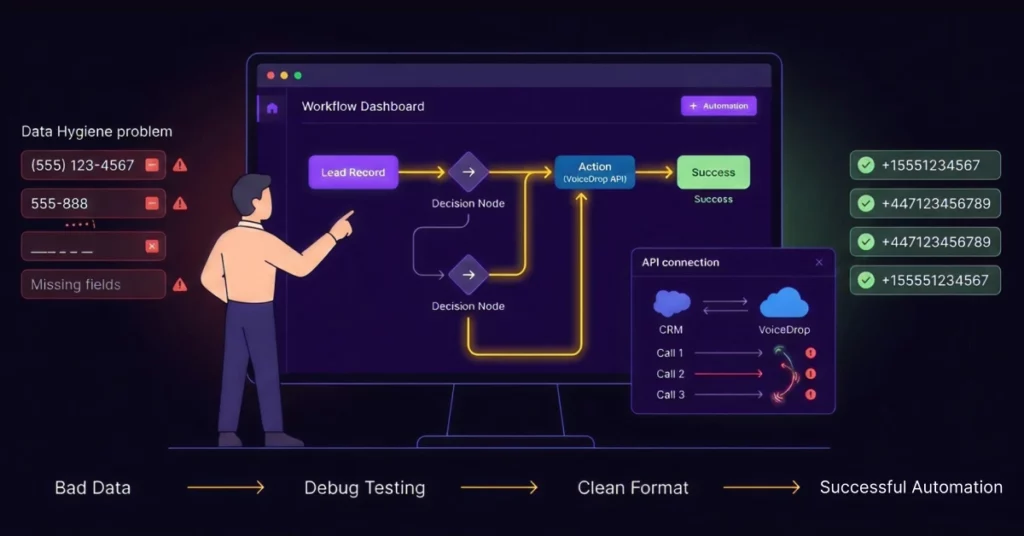
Before activating your Flow, use the Debug button in the top right corner. This allows you to select a sample Lead record and simulate the automation. You will see a yellow line tracing the path to ensure it hits the “Action” element and doesn’t stop at the “Decision” outcome.
Common Failure Point: Data Hygiene
The #1 reason flows fail is bad data. VoiceDrop requires an E.164 phone format (e.g., +1 for the US). If your CRM is full of numbers like “(555) 123-4567” or incomplete fields, the API call will bounce.
Pro Tip: If you have high-value leads but missing phone numbers, you can’t automate them. 👉 Get Verified B2B Phone Numbers at 1Lookup to fill the gaps in your CRM before you hit “Activate.”
Compliance and Legal Considerations
Automation is powerful, but it must be used responsibly. You should always acknowledge the importance of TCPA compliance.
Specifically, remind your team to only trigger these Flows for leads who have opted in or have a legitimate business interest (B2B). Using ringless voicemail for cold, unsolicited marketing to consumers is generally restricted. Always prioritize consent to maintain a healthy brand reputation.
Calculating the ROI of Automated Voicemail
Let’s look at the “Efficiency Gap.” If a sales rep costs you $50/hour and they spend 2 hours a day manually leaving voicemails, you are spending $500 per week, per rep, just on leaving messages.
By automating this with Salesforce Flows:
- Cost: A fraction of a cent per voicemail drop.
- Gain: Your reps reclaim those 10 hours a week to focus on negotiation and closing.
Companies using high-level automation in Salesforce see a 53% higher conversion rate from lead to opportunity. The question isn’t whether you can afford the software; it’s whether you can afford to keep paying your reps to do administrative work.
To calculate your potential savings, See VoiceDrop Pricing.
Conclusion
Salesforce Flows, combined with VoiceDrop, turns a manual chore into a seamless background task. You no longer need to rely on expensive developers or waste hours on manual follow-ups. By implementing this strategy, you ensure every lead gets a personal touch without the manual effort.
Don’t let your leads go cold. Set up your first Flow today.
FAQ’s
Do I need to know Apex code to set this up?
No. This entire guide uses “Flow Builder,” which is Salesforce’s visual, no-code tool. It is designed for administrators, not developers.
Will this work for “Opportunities” and “Contacts” as well?
Yes. You can create a Flow for any Salesforce object (Leads, Contacts, Opportunities, or even custom objects) as long as a phone number field is available.
How fast is the voicemail delivered after the trigger?
Usually within minutes. Once the Flow triggers, VoiceDrop processes the request instantly, and the voicemail lands on the user’s phone shortly after.