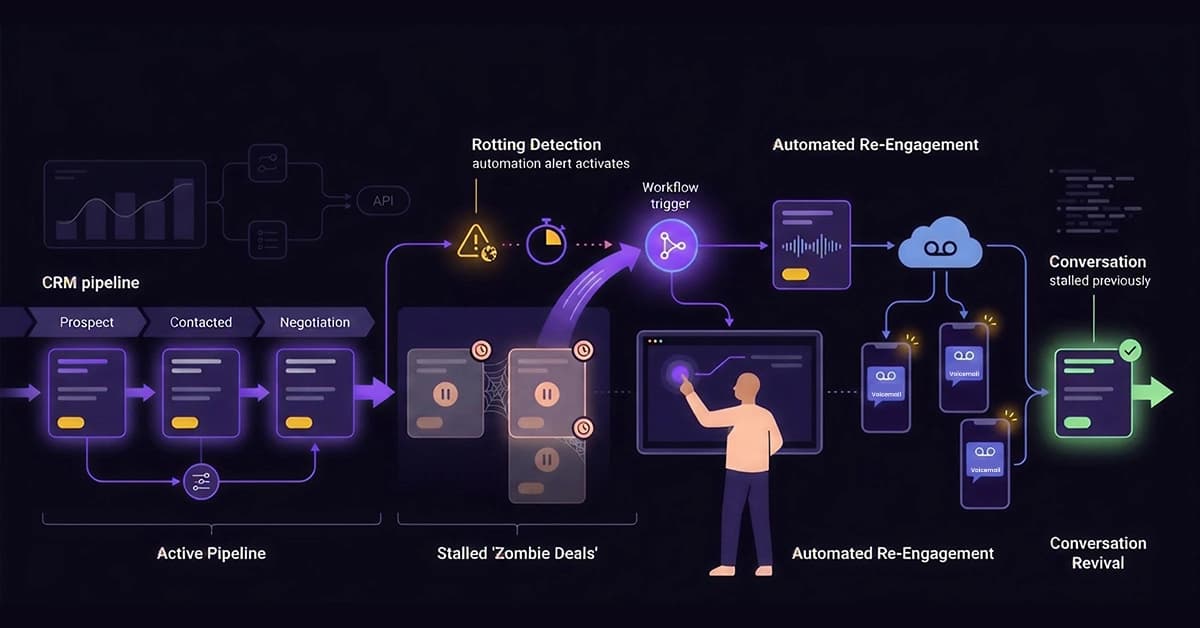
Your pipeline likely looks visually full, yet half of those deals haven’t moved in weeks. While these “zombie deals” might make your forecast look impressive, they actually clutter your view and give you a false sense of security.
The modern sales landscape demands a shift from “human memory” to “system logic.” You need to move toward “Rotting-Based Automation,” where your CRM acts as the safety net, catching opportunities before they fall.
Pipedrive Lead Follow-Up Automation leverages Pipedrive’s native “Rotting” feature to trigger an external API like VoiceDrop. The result? A re-engagement voicemail is delivered the exact moment a deal stays idle for too long, reviving the conversation without your reps ever lifting a finger.
Why Deals Stall (And Why Manual Follow-Up Fails)
Understanding why deals stagnate is the first step toward fixing your pipeline. Often, the issue isn’t the lead’s interest, but the timing of the follow-up.
The “Rotting” Phenomenon
Pipedrive provides a visual cue where deals turn red after a set period of inactivity. Ideally, this color change signals to the sales rep that immediate action is needed. However, for busy teams managing hundreds of leads, this visual warning simply becomes background noise.
As a result, valuable opportunities slip through the cracks solely because the “red flag” was ignored.
Fear of Being “Annoying”
Sales reps naturally hesitate to call a “cold” lead for the fifth time. They worry about being perceived as a nuisance, which leads to call avoidance. Automation effectively removes this emotional barrier.
Because the system triggers the outreach based on logic rather than emotion, the essential touchpoint happens every single time.
The Science of “Pattern Interrupts”
Sending a standard “Just checking in” email rarely garners a response because prospects are inundated with them. In contrast, a ringless voicemail creates curiosity because it appears as a missed call notification on their mobile device. This “pattern interrupt” compels the prospect to listen, thereby increasing the likelihood of a callback.
Recovering Lost Revenue
Recovering Lost Revenue Persistence is the mathematical key to closing. Industry data confirms that 80% of sales require five or more follow-ups, yet an alarming 44% of reps give up after just one attempt.
Automation bridges this gap effortlessly, ensuring the 5th call happens as reliably as the 1st. You can review these sales follow-up statistics to calculate exactly how much revenue you are leaving on the table by relying on manual effort alone.
The Architecture: Pipedrive Webhooks vs. Zapier
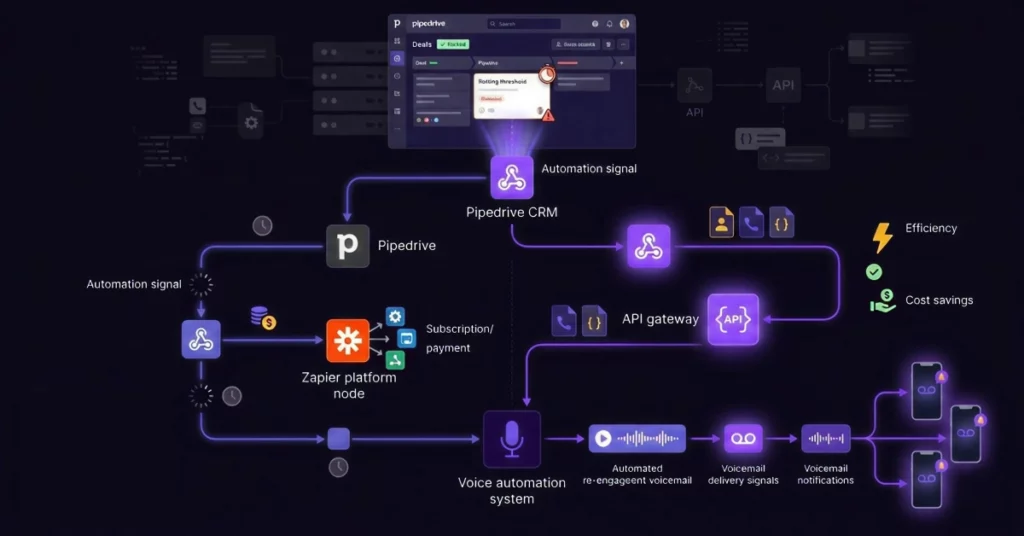
To implement this solution, consider using Zapier, but a direct webhook is often superior.
The Trigger (Pipedrive Side)
The process begins with a specific event within the CRM. For this workflow, the trigger is typically “Deal Rotting Time > X Days” or “Stage changed to [Stalled].”
The Payload (JSON Data)
Once triggered, Pipedrive sends a robust data packet known as the payload. This JSON file contains critical information, including the specific Deal ID, the Person Name, and the Contact Phone Number needed for the outreach.
The Action (VoiceDrop Side)
VoiceDrop receives this data packet instantly. It then filters the phone numbers to ensure they are mobile devices and schedules the audio drop.
Cost & Latency Benefits
Using native Webhooks is superior to Zapier because it allows for instant execution without the “polling” delays common in third-party connectors.
Furthermore, it reduces overhead costs since you don’t need an extra subscription for an intermediary service. You can learn more about our scalable pricing to see how cost-effective direct integrations can be.
Prerequisites Before Building the Workflow
Before you dive into the technical setup, ensure you have the following components ready.
Pipedrive Admin Permissions
You must have administrative access to “Workflow Automation” and “Webhooks.” These features are generally available on Pipedrive’s Advanced, Professional, and Enterprise plans.
A VoiceDrop API Key
You will need your unique API Key. This identifier allows Pipedrive to “talk” to your VoiceDrop account securely and authorize the voicemail sends.
The “Re-engagement” Script
The script must be low-pressure. A “breakup” script often works best. Example: “Hey, I haven’t heard back, so I assume you’ve gone in a different direction. Should I close your file?”
Clean Data (Critical Step)
Automation relies on accuracy. Sending ringless voicemails to office landlines will fail and waste credits. Before activating this workflow, ensure your pipeline consists of valid mobile numbers using the Bulk Phone Validator from 1Lookup. 1Lookup is built by the same team as VoiceDrop.
Step-by-Step Implementation Guide
Follow these steps to turn your stalled deals into active conversations.
Step 1: Configure Your VoiceDrop Campaign
First, log in to VoiceDrop and upload your “breakup” audio file. Set the campaign status to “Active” and copy your Campaign ID, as you will need it shortly. For more detailed instructions on connecting platforms, check our guide on VoiceDrop Integrations.
Step 2: Create a Pipedrive Workflow Automation
Switch to Pipedrive and navigate to Tools and apps > Workflow Automation > Create Custom Workflow. When asked for the target, select Deals.
Step 3: Define the “Rotting” Trigger
Now, define exactly when the voicemail should fly.
- Trigger: Select “Deal Updated.”
- Condition: Set the condition to Rotting time has changed OR Days in Stage > 7.
If you are unsure about how to define these triggers, refer to the official Pipedrive Webhooks Guide for documentation.
Step 4: Configure the Webhook Action
In the “Do this” section of the workflow, select “Trigger Webhook” as the action.
- Method: Choose POST.
- URL: Input the unique VoiceDrop API Endpoint provided in your dashboard.
Step 5: Map the JSON Parameters
To ensure the call goes to the right person, you must map the data fields. Specifically, map the Pipedrive person_id.phone field to the VoiceDrop source_number parameter in the request body.
Step 6: Testing the “Zombie” Resurrection
Finally, do not go live without a test. Manually set a test deal (linked to your own phone number) to “Rotting” or manually adjust the stage timer. Verify that your phone receives the voicemail within a minute.
Advanced Strategies for Power Users
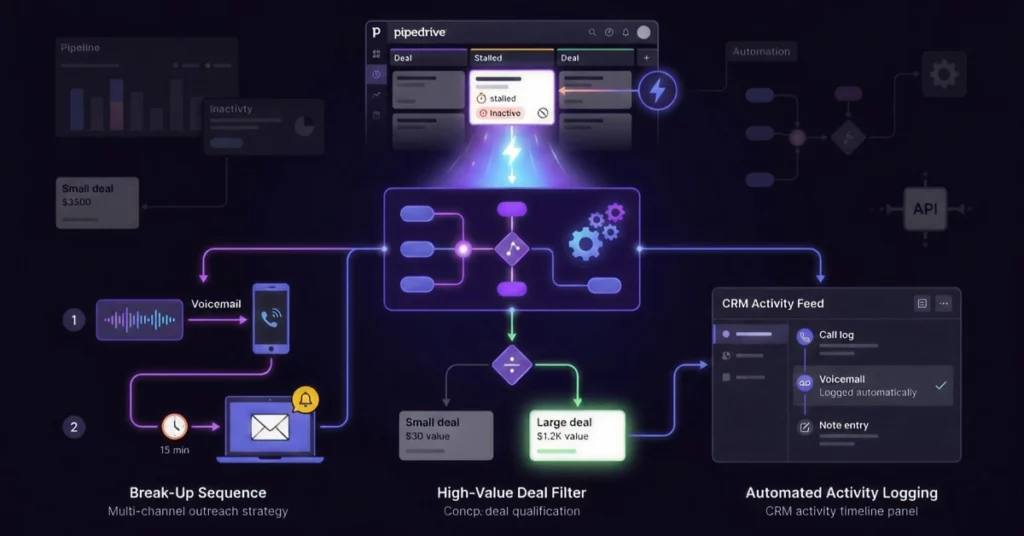
Once you have the basic automation running, you can add layers of sophistication.
The “Break-Up” Sequence
Don’t stop at just a voicemail. Combine the voicemail trigger with an automated email sent 15 minutes later titled “Closing your file?” This multi-channel approach maximizes response rates by catching them on the medium they prefer.
Filtering High-Value Deals
You may not want to spend credits on every small lead. Therefore, add a condition to your workflow: Deal Value > $5,000. This ensures you spend resources only on re-engaging high-value prospects, while letting smaller deals receive an email or remain in the stalled stage.
Automated Activity Logging
To keep your records clean, add a Pipedrive step to “Create Activity” (Type: Call) automatically after the webhook fires. Consequently, the sales rep will see the “Voicemail Sent” note in the deal history, preventing them from double-calling.
Troubleshooting Common Errors
If your automation isn’t working as expected, check these common pitfalls.
Error 400 (Invalid Number)
This error occurs if Pipedrive sends a number with dashes, spaces, or, most commonly,y if the number is a landline. Carriers will instantly reject ringless drops to non-mobile lines.
The Fix: Eliminate these bounce-backs permanently by using 1Lookup’s HLR API to verify carrier details and line types instantly before the trigger fires. This ensures you only pay for successful drops.
Infinite Loops
This is a critical check. Ensure your workflow is set to trigger “Only once” per stage. Otherwise, the client might receive the same voicemail every single time the deal is updated, which would be disastrous for the relationship.
Webhook Not Firing
If the deal updates but no call is sent, check the ownership permissions. Verify if the user who owns the deal has the correct permissions to trigger automations in the global settings.
Best Practices for Automated Follow-Up
Technology is only as good as the strategy behind it.
Respect Business Hours
You should never wake a prospect up with a sales call. Use Pipedrive’s execution window settings to ensure voicemails are only dropped between 9 AM and 5 PM in the prospect’s local time zone.
The “Generic” Personalization
Since you can’t insert a dynamic name into a pre-recorded audio file, you’ll need to be clever. Record a message that sounds personal but applies to anyone. Example: “Hey, it’s [Your Name], just looking at your account and wanted to give you a quick update…”
Conclusion
A rotting deal is not necessarily a lost deal; often, it is simply an ignored deal. Automation effectively fixes the “ignoring” part of the equation.
Future-Proof Your Pipeline Once you automate the “stalled” stage, you can apply this logic to “New Leads” or “Post-Demo” stages. This ensures high velocity throughout your entire sales funnel.
Stop letting revenue slip through the cracks due to inaction. Get your API Key from VoiceDrop and bring your dead deals back to life today.
Start your free trial now and watch your stalled deals turn into active conversations.
FAQ’s
Will this override my manual tasks?
No, this automation runs entirely in the background. You can still schedule manual calls or tasks if you prefer to handle specific high-touch deals personally.
Does Pipedrive charge for Webhooks?
Webhooks are generally included in Advanced, Professional, and Enterprise plans. However, you should check your specific tier to ensure you have access to the Workflow Automation feature.
How quickly does the voicemail send after the deal rots?
The process is near-instant. Typically, the voicemail lands on the prospect’s phone within 30-60 seconds of the trigger event occurring in Pipedrive.
Can I send different messages for different stages?
Yes, absolutely. You can simply create separate Workflows for each stage (e.g., “Negotiation Stalled” vs. “Lead Qualification Stalled”) and map them to different VoiceDrop Campaign IDs, each with an appropriate script.